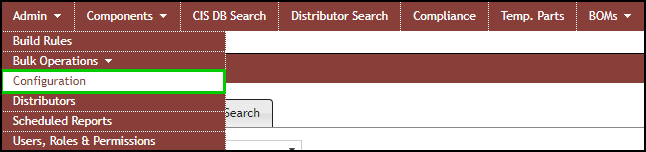
Admin > Configuration
The Configuration menu under the Admin menu item allows you to do the following:

Admin > Configuration
oCreate Component Views utilizing subsets of data from default tables.
oCustomize Fields to add/remove/rename fields, display pick lists, default field values, include fields for history tracking, and control required fields for TMP and Formal parts. Configure fields to be transferred to design when placing parts from CIP and enable System Capture Configuration.
oReorder View Fields - to change order and grouping of fields in each component view.
oBOM/Design Options - to configure BOM Format and Design Parts Sync
oSet up Email Notifications to inform a team or work group when changes to the CIP database occur.
oIncrementally auto-number new parts by configuring a auto-increment part numbering scheme.
oColor code Manufacturer Part Status field by matching a part status with a color coded configuration .
oSystem Capture Configuration to configure substitution rules and create PTF file. Note: This option is hidden when configure fields to be transferred to design is not set to a System Capture option.
Other items you can configure:
oNew Part Default – Configure the New Part Form to default as a Temporary or Formal part.
oImport/Export Separator – Configures the separator to be used for CSV file import and export.
oSchematic Part/PCB Footprint Delimiter – Configures the delimiter for symbols when multiple symbols are specified for a part.
oCIP Base URL – Configure the URL for CIP to enable CIS users to open CIP parts from the CIS Explorer Window within Cadence OrCAD Capture.
oComponent Company Action Link – Enable a global link enabled on all components pages.
oReuse Module Directory – Configure the location where reuse module .DSN files are stored.
oShow CIP Client Download Link – This allows users in a company to download the CIP client directly from the CIP page.
oTemp Part Prefix – Configure the part number prefix used for temporary parts.
oFull Text Search Enabled - This enables/disables full text search functionality.
oEnable Download of Ultra Librarian Models - Enable Ultra Librarian model download and configure common download location.
oEnable Virtual Librarian Service - Enable Virtual Librarian Service (VLS) menu item and Manufacturer PN request button for viewing and submitting VLS requests.