The BOM/Design Options configuration tab allows you to:
•Set BOM Format for Do Not Stuff and Same as Core parts between core design and variants.
oEnter a text label to indicate a BOM part is not present on the core design or a variant - Default: Do Not Stuff
oEnter a text label to indicate a BOM Variant part is the same as the core design - Default: Same As Core
•Configure Design Parts Sync Part Replacement Filter Rules to determine whether replacement part fields are required to match the original part. Each of the field filters below can be set to Optional (Warn) or Required. This will control the field filters and related warnings when using Design Parts Sync to Replace Parts on a design with selected replacement part.
▪Component View
▪Value
▪Schematic Part (Source Part and Source Library)
▪PCB Footprint
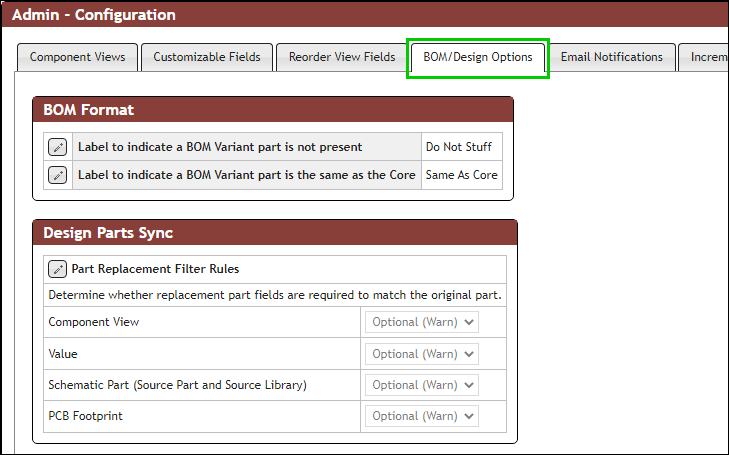
BOM/Design Options
Update the BOM Format labels for BOM Variants:
1. Click on the Edit  button.
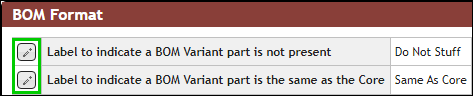
Edit BOM Format Labels
2.Enter the desired text or clear the field to use blank/empty as the label.
a.Do Not Stuff - This will apply when viewing a BOM Revision and selecting (1) the core or single variant, or (2) All Variant. The label entered will be dynamically shown on a BOM-Rev-Variant when at least one variant or core design has a RefDes that does not exist on another variant or core design of the same BOM revision.
b.Same As Core - This will apply when viewing a BOM Revision and selecting the All Variant option.
3.Click the Save  button to apply the setting.

Change from Do Not Stuff to DNS

Change from --- Same as Core --- to blank
Update the Part Replacement Filter Rules for Design Parts Sync:
1.Click on the Edit button.
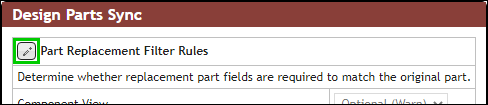
Edit Part Replacement Filter Rules
2.Select the desired field drop-down list and choose Optional (Warn) or Required. This will apply when invoking Part Replacement and filtering and selecting the replacement part.
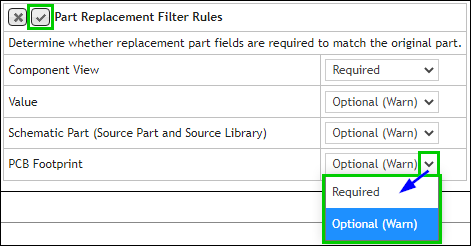
Updated Part Replacement Filter Rules
3.Click the Save button to apply the setting.