After opening a design in OrCAD Capture that was created using CIP parts, you can run Design Parts Sync to review all parts (Part References, RefDes) placed on the schematic design and ensure their transferred fields are up to date with respect to your CIP database. The CIP database connection is determined by your CIP URL under CIP > Settings. This feature does not require an ODBC data source connection, but that is still required if you use CIS Explorer or CIS Part Manager.
Design Parts Sync can be launched by clicking CIP > Design Parts Sync from the top menu, or by right-clicking (RMB) inside an open schematic design page and selecting More... > CIP: Design Parts Sync. After launching the feature, it will open to the Summary page in a new or existing tab (CIP Design Parts Sync: <DESIGNNAME.DSN>), displaying the Summary Information, Part Status Report, Display Mode, Export, and User Settings, and Sync Actions.
Note: This feature requires OrCAD Capture, the CIP Client plugin, and setting Transfer Fields to Design to OrCAD using CIP or CIP and System Capture. It is not available when using the System Capture plugin.
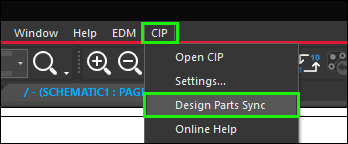
Launch Design Parts Sync from top CIP Menu
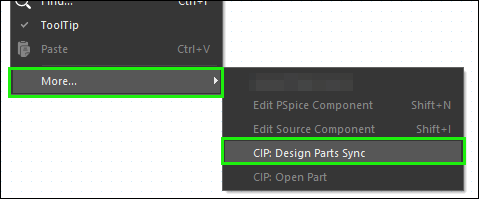
Launch Design Parts Sync from RMB on an Open Schematic Page
The Design Parts Sync consists of the following:
1.Summary page - This is the initial Design Parts Sync page that loads in a new or existing tab (CIP Design Parts Sync: <DESIGNNAME.DSN>), displaying the Summary Information, Part Status Report, Display Mode, Export, and User Settings, and Sync Actions. Data displayed on the summary page will be refreshed each time you open the Design Parts Sync tab, click the Refresh  button, complete an Auto Sync, or return from Processing page after processing selected parts.
2.Processing page - This loads in a Design Parts Sync tab after you select the check boxes for the desired parts and then click  . It allows the user to review the selected parts (RefDes) to process, grouped by part number, and decide whether to
  ,
,  , or
, or  . All of the Part References associated with a single PART_NUMBER are grouped together and can be processed together as well, but individual items can be deselected if you do not wish to sync them at that time.
Note: If you use  in place of , it will Automatically Sync the selected design parts with the CIP database, without user interaction. The Processing page will not be shown in this case.
3.Part Replacement page - This loads in a Design Parts Sync tab and can be invoked from a selected part on the schematic design or from the Summary page of Design Parts Sync. It allows the user to select a part RefDes or set of RefDes and choose a different part number from CIP to replace them with. It is recommended that you Sync Parts on Design with CIP Database before replacing parts.
Refer to Sync Parts on Design with CIP Database for instructions on the following:
2.Sync selected design parts with the CIP database, one part number at a time, with user interaction.
3.Automatically Sync all selected design parts with the CIP database, without user interaction.