The Processing page will launch in the same Design Parts Sync tab after you select the check boxes for the desired parts and then click  . This allows the user to review the selected parts (RefDes) to process, grouped by part number, and decide whether to
  ,
,  , or
, or  . All of the Part References associated with a single PART_NUMBER are grouped together and can be processed together as well, but individual items can be deselected if you do not wish to sync them at that time.
Note: If you use  in place of , it will Automatically Sync the selected design parts with the CIP database, without user interaction. The Processing page will not be shown in this case.
Click the  link in the title bar to open the User Guide to this section.
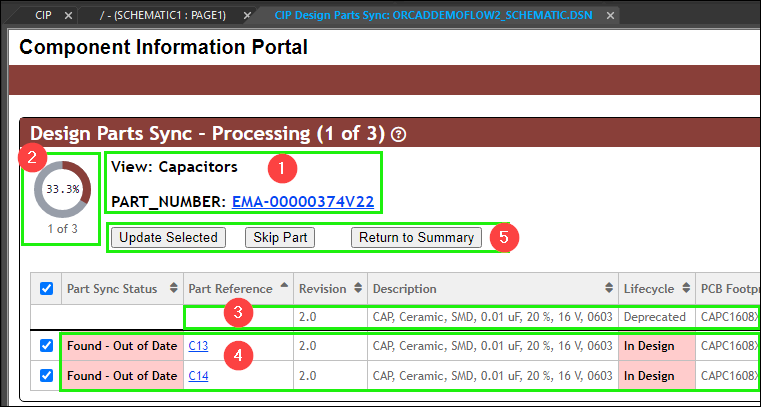
Design Parts Sync - Sync View
1.Current CIP PART_NUMBER and the CIP (Component) View to which it belongs. Click on the part number (e.g. EMA-00000374V22) to open the part in a new CIP tab inside Capture.
2.Current progress, shown as a percentage (e.g. 33.3%) and as current part number out of total selected part numbers (e.g. 1 of 3). The progress counts are also shown in parentheses in the title bar.
3.CIP's transferred field data for the current CIP PART_NUMBER. This appears in the top data row of the table, just below the header row, and does not have a Part Reference since it is referring to the part in CIP and is not a RefDes placed on the design.
4.Design's transferred field/property data for each RefDes placed on the design. Out of Date values on the design are highlighted as shown. Refer to the Part Status Report for all Part Sync Statuses and highlight colors.