The Part Replacement page will launch in a Design Parts Sync tab and can be invoked from a selected part on the schematic design or from the Summary page of Design Parts Sync. It allows the user to select a part RefDes or set of RefDes and choose a replacement part from the CIP database.
Note: This feature does not replace parts on CIS Variants. When used on a design with CIS Variants, replacing a part will only replace the parts on the core design.
Click the  link in the title bar to open the User Guide to this section.
To launch Part Replacement from Design Parts Sync,
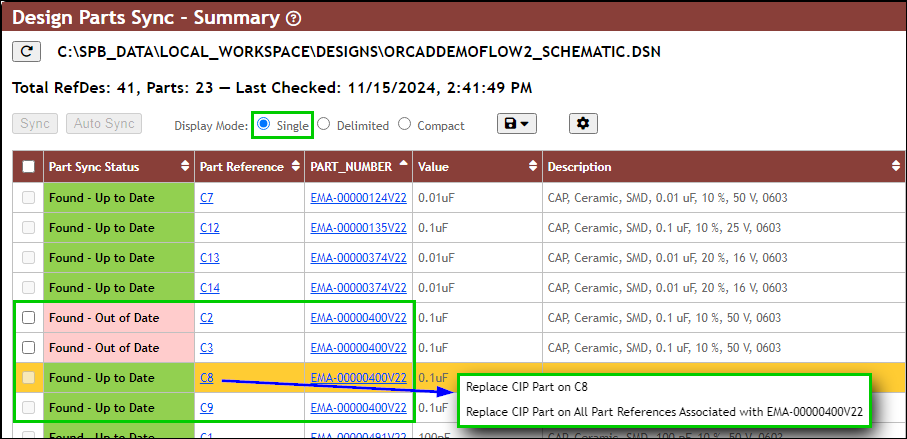
Single Display Mode - Right-click options to Replace Single RefDes or All RefDes Associated with the PN
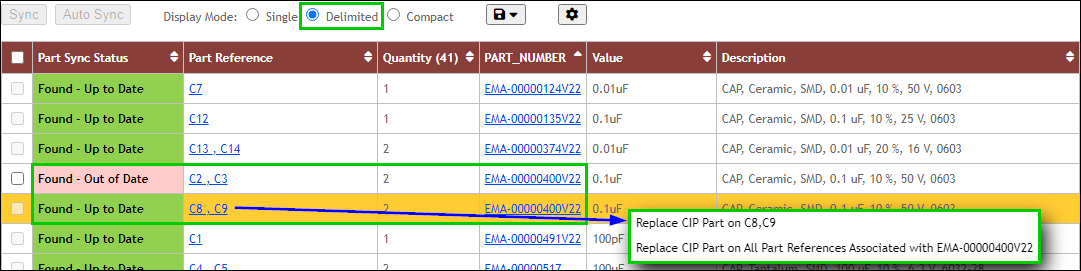
Delimited Display Mode - Right-click options to Replace Grouped RefDes or All RefDes Associated with the PN
1.Open a schematic design page, otherwise Design Parts Sync will be disabled.
2.Launch Design Parts Sync from Capture's top menu bar or from the right-click (RMB) menu on a schematic design page.
3.Select the Delimited or Compact Display Mode to group RefDes with the same company Part Number and Part Sync Status. Separate rows/groups will be shown for RefDes that have the same part number, but different Part Sync Status.
a.The figures above show that C2, C3, C8, and C9 all use the same Part Number. However, C2/C3 are Found - Out of Date and C8/C9 are Found - Up to Date so there are two groups of RefDes for the Part Number in question.
| Note: It is recommended that you Sync Parts on Design with CIP Database before replacing parts with this method, as it will improve the groupings if more parts are Found - Up to Date. |
4.Right-click (RMB) on a row for a RefDes or group of RefDes to be replaced, which will display a context menu with options to:
a.Replace CIP Part on <RefDes> - This depends on the Display Mode (Single, Delimited, Compact) - e.g. Replace CIP Part on C8 (Single), Replace CIP Part on C8, C9 (Delimited), or Replace CIP Part on C8-C9 (Compact).
b.Replace CIP Part on All Part References Associated with <PN> - This selects all RefDes that use the same PN and it does not depend on the Display Mode. - e.g. Replace CIP Part on All Part References Associated with EMA-00000400V22.
5.Click on the desired replacement option to open the Part Replacement page in the existing Design Parts Sync tab.
To launch Part Replacement from a Schematic Design Page,
1.Open a schematic design page, otherwise Part Replacement options will be disabled.
2.Right-click (RMB) on a part page and select More... which will display a context menu with options to:
a.CIP: Replace Part on this RefDes - Select this to only replace the selected RefDes (e.g. R1).
b.CIP: Replace Part on All Associated RefDes - Select this to replace All Associated RefDes (e.g. R1, R3-R7, R10, etc.) that use the same CIP part.
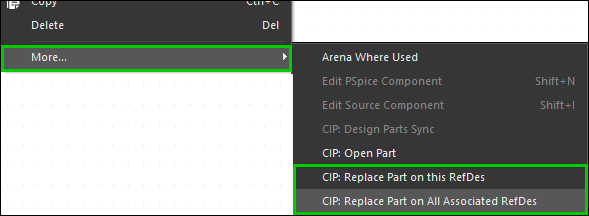
Launch Part Replacement from RMB on Selected Part
3.Click on the desired replacement option to open the Part Replacement page in a new or existing Design Parts Sync tab (if you've launched the feature and still have the tab open).
To Filter on Potential Replacements and Select a Replacement Part,
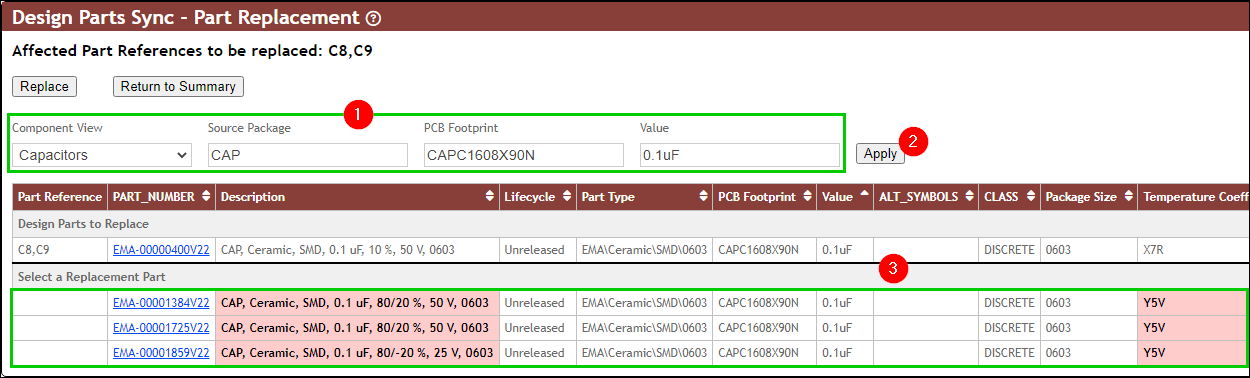
Design Parts Sync - Part Replacement - Find a Replacement Part
1.Initially, the Component View, Source Package (Source Library and Source Package), PCB Footprint, and Value are populated with the values from the part's RefDes to be replaced. This set of values is used for the initial filter that is applied automatically and lists potential replacement parts (from your CIP database) that contain all values. The potential replacement parts are listed under the Select a Replacement Part row. If the desired replacement part is not currently shown in the replacement list, update or clear the field filters as desired.
| Note: Some of these fields may not be editable if they are set as Required to match the parts being replaced. If that is the case, a user with permission can view the Design Parts Sync tab under the Admin > Configuration page. |
2.Click Apply to filter on the field values shown, which will refresh the list of potential replacement parts.
3.Review the list of replacements and repeat the steps above until a suitable replacement is shown.
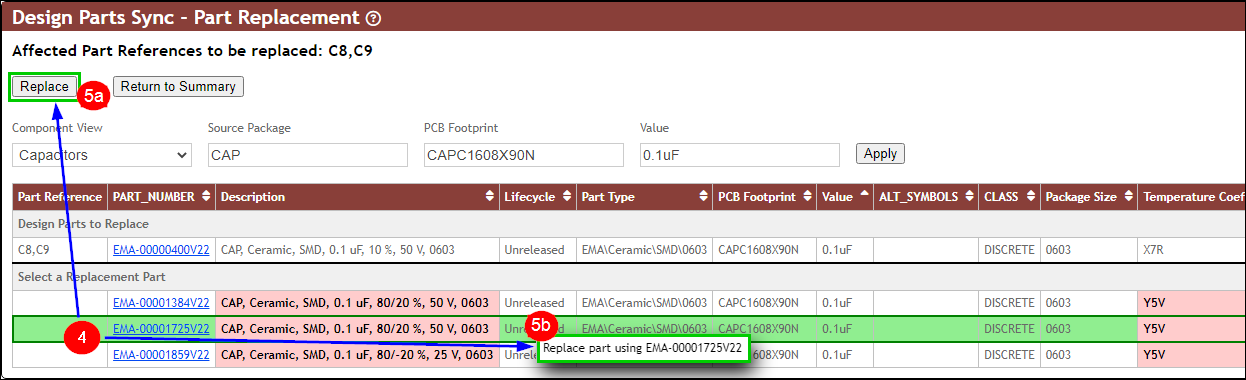
Design Parts Sync - Part Replacement - Select a Replacement Part
4.Select the desired replacement part in one of two ways:
a.Click anywhere on the row of the desired part number, except the underlined part number link (PART_NUMBER in the example above). This will outline the part in green, and if not hovering over the part, will also highlight the cells in green. Field values that do not match the part number of the affected RefDes will remain highlighted in light red.
b.Right-click (RMB) on the row of the desired part number, which will bring up an option to replace the part.
5.Replace the part based on how you selected it in 4a/4b:
a.If you clicked on the part (4a), click the Replace button next to the Return to Summary button.
b.If you right-clicked on the part (4b), click the context menu to Replace part using <Selected PN>.
6.If all of values from the four replacement filter fields (1, above) match between the original part number being replaced and the selected replacement part, the replacement will proceed. However, if any of the values do not match between the original and replacement part, you will be prompted with a warning asking you to confirm your replacement choice. Click  to confirm the part replacement or
  to return to replacement part list.
| Note: A warning will never appear if all of your Part Replacement Filter Rules in the Admin > Configuration > Design Parts Sync page are set to Required because they will already match, since you won't be able to change the initial filter of potential replacements. However, if even one of the fields is set to Optional (Warn), you could select a replacement that doesn't match (e.g. select a different PCB Footprint), in which case you will be warned as shown. Only the applicable warning messages will be displayed. |
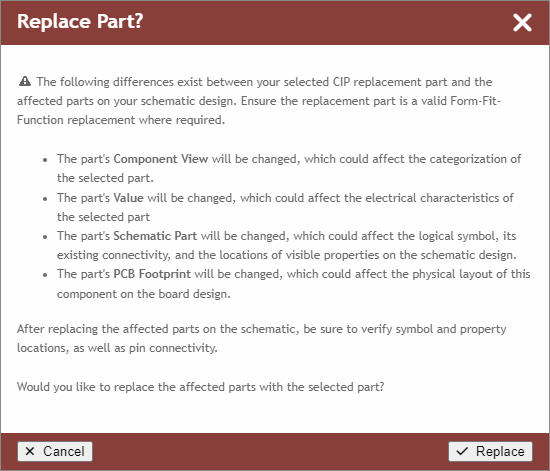
Part Replacement Confirmation