When you select BOMs > View/Import, the BOM Information page selects the first BOM-Revision-Variant in the list and displays the info of the BOM and its BOM Items.
BOMs can be viewed in multiple ways:
•Specific Variant of selected BOM Revision

Core Design (Left) vs. variant1 (Right)
oEach part used on a given RefDes for the selected variant will be shown, regardless whether it is the same part number as the core.
▪e.g. If the core and variant1 both have RefDes C1 with part EMA-00000491V22, the actual PN will be shown for C1 when viewing the core or variant1.
oWhen a RefDes exists in the core and not a variant, or any variant but not in the core (not possible with CIS Variants), the Do Not Stuff text (configurable in BOM Format) will be shown in place of the part number for the variant.
▪e.g. If the core has RefDes C2 with part EMA-00000400V22 and variant1 does not have a C2, the Do Not Stuff text will be shown for part number in C2 when viewing variant1.
•All Variants of selected BOM Revision
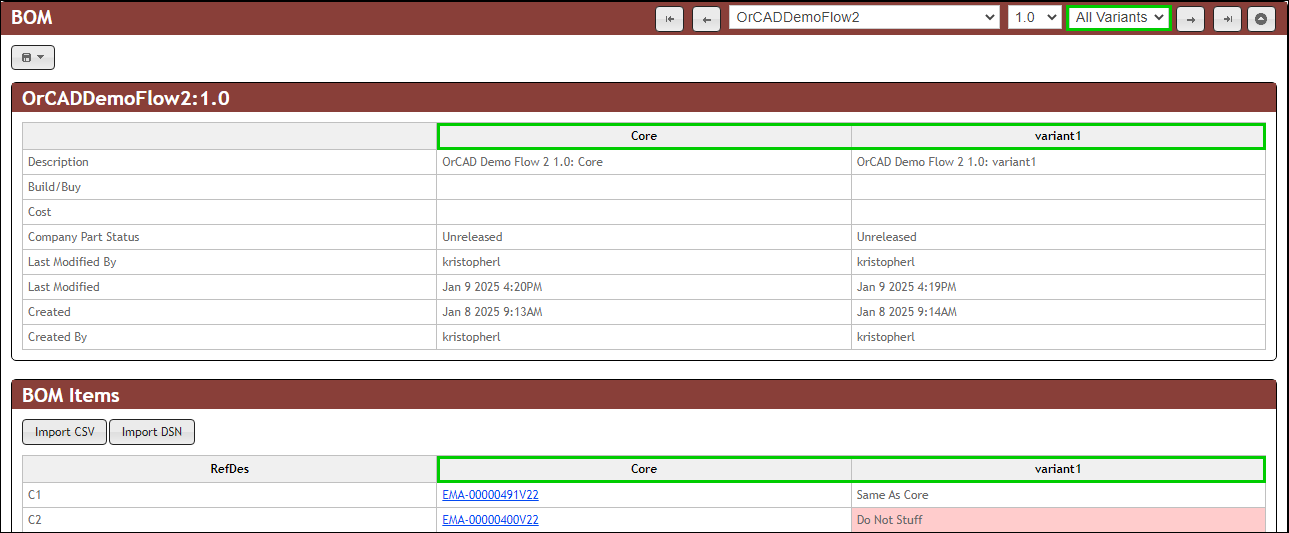
All Variants of selected BOM Revision
oWhen a variant uses the same part number as the core for a given RefDes, the Same As Core text (configurable in BOM Format) will be shown in place of the part number.
oWhen a RefDes exists in the core and not a variant, or any variant but not in the core (not possible with CIS Variants), the Do Not Stuff text (configurable in BOM Format) will be shown in place of the part number for the variant.
▪If BOM Items exist for the core or a variant and you create a new variant (or core if it didn't exist), the BOM Items will all initially appear as Do Not Stuff because there are no BOM Items. Once BOM Items are imported into the new variant, the configured text for Same As Core and Do Not Stuff items will be updated accordingly. e.g. Create variant2 in the example above and the BOM Items will all be Do Not Stuff because there are no items in variant2 at first.

To view a specific BOM-Revision-Variant
1.Select a BOM from the drop-down list that is located in the upper-right part of the page. Select a (BOM) Revision for the selected BOM, then select a (BOM) Variant for the selected BOM Revision. Each time you select a different BOM, Revision, or Variant, the BOM and BOM Items sections are updated.
| Note: It may take a while to load BOMs, especially if they are large. |
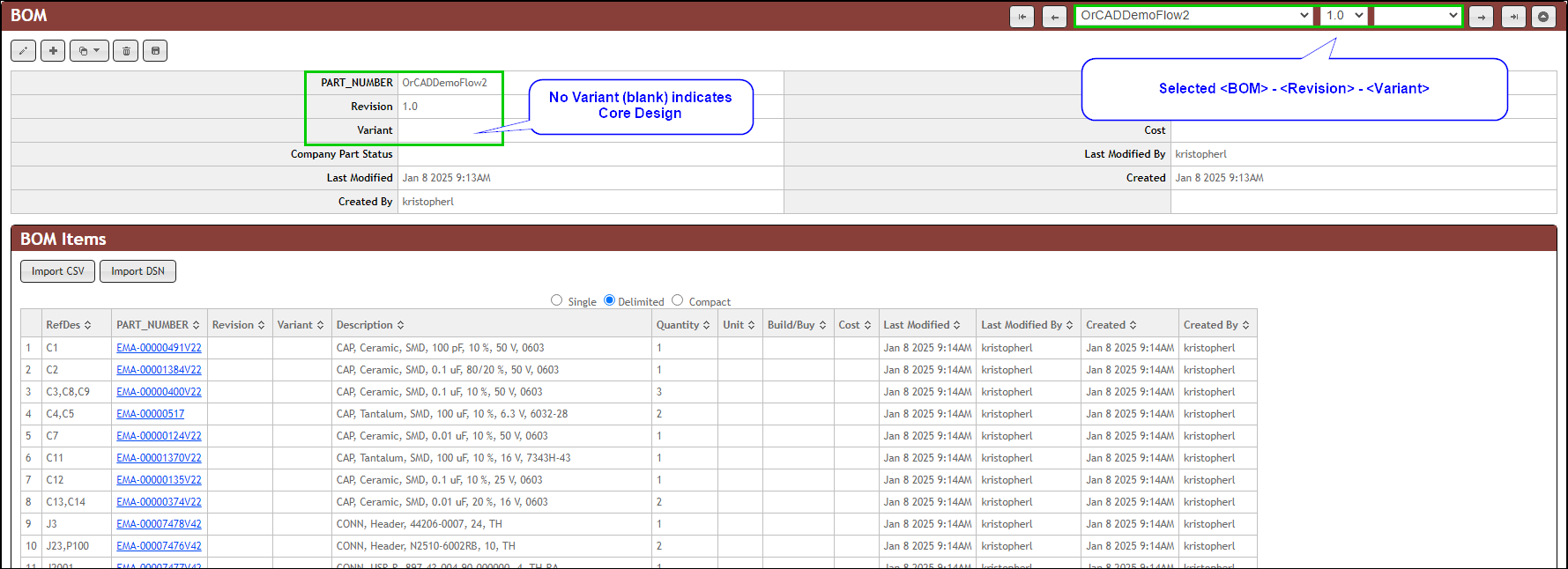
Single Variant Selected (Core Design)
2.Select a BOM Display Mode: Single, Delimited, or Compact.
▪Single - Each reference designator (RefDes) is shown on a single line.
▪Delimited - Each part number is shown on a single line where RefDes are shown as a comma separated list.
▪Compact - Each part number is shown on a single line where RefDes are shown as ranges or a comma separated list.
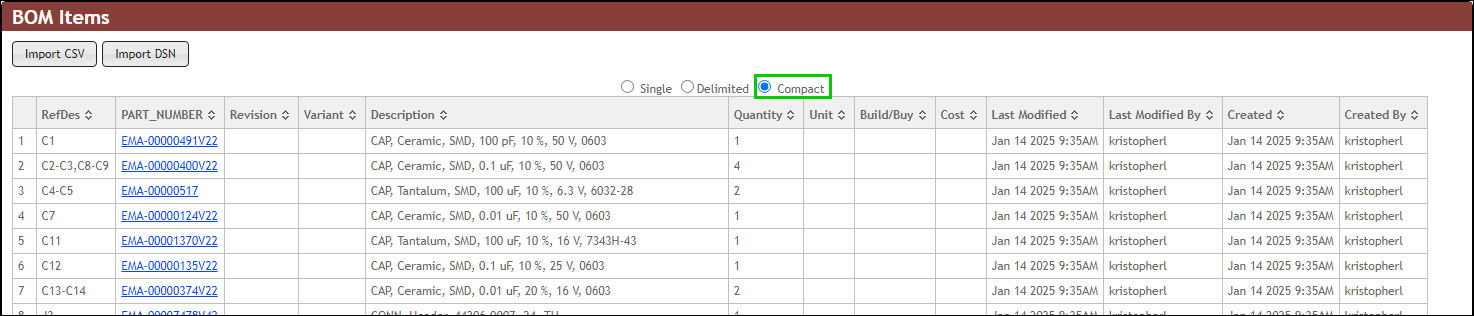
Single Variant - Compact Display Mode
Note: Component part attributes (e.g. Description, Schematic Part, PCB Footprint, etc.) cannot be altered or added when viewing or importing a BOM because they are tied to the part numbers themselves.
To view All Variants of a given BOM-Revision,
1.Select a BOM from the drop-down list that is located in the upper-right part of the page. Select a (BOM) Revision for the selected BOM, then select All Variants for the selected BOM Revision. Each time you select a different BOM, Revision, or Variant, the BOM and BOM Items sections are updated.
| Note: It may take a while to load BOMs, especially if they are large. |
2.The top section shows the BOM Fields for the core and all variants of the selected BOM Revision.
3.The RefDes column shows a cumulative list of all RefDes used across the BOM Revision, displaying a single row per RefDes. This will always display BOM Items in Single display mode and cannot be changed when All Variants is selected.
a.The Core column appears when a core design exists. It will list all parts used on the core.
b.Each variant appears in a single column.
4.When a variant uses the same part number as the core for a given RefDes, the Same As Core text (configurable in BOM Format) will be shown in place of the part number.
a.e.g. RefDes C8 shows EMA-0000400V22 in the Core. Since the variant1 and variant2 also use the same part number for C8, they both show Same as Core.
5.When a RefDes exists in the core and not a variant, or any variant but not in the core (not possible with CIS Variants), the Do Not Stuff text (configurable in BOM Format) will be shown in place of the part number for the variant.
a.e.g. RefDes J3 shows EMA-00007478V22 in the Core. Since J3 is not used in variant1 or variant2, they both show Do Not Stuff.
b.For Capture CIS variants, the Core design will always include all of the parts. However, if managing your variants elsewhere and importing via the Import CSV button, the Core may have Do Not Stuff values if at least one variant uses a RefDes not used on the Core.
6.When a RefDes of a given variant uses a different part number than the core, the actual part number used on each variant will be displayed.
a.e.g. RefDes R1 shows EMA-00003232V22 in the Core, EMA-00002609V22 in variant1, and EMA-00002609V22 in variant2. All display the actual part number for row R1.
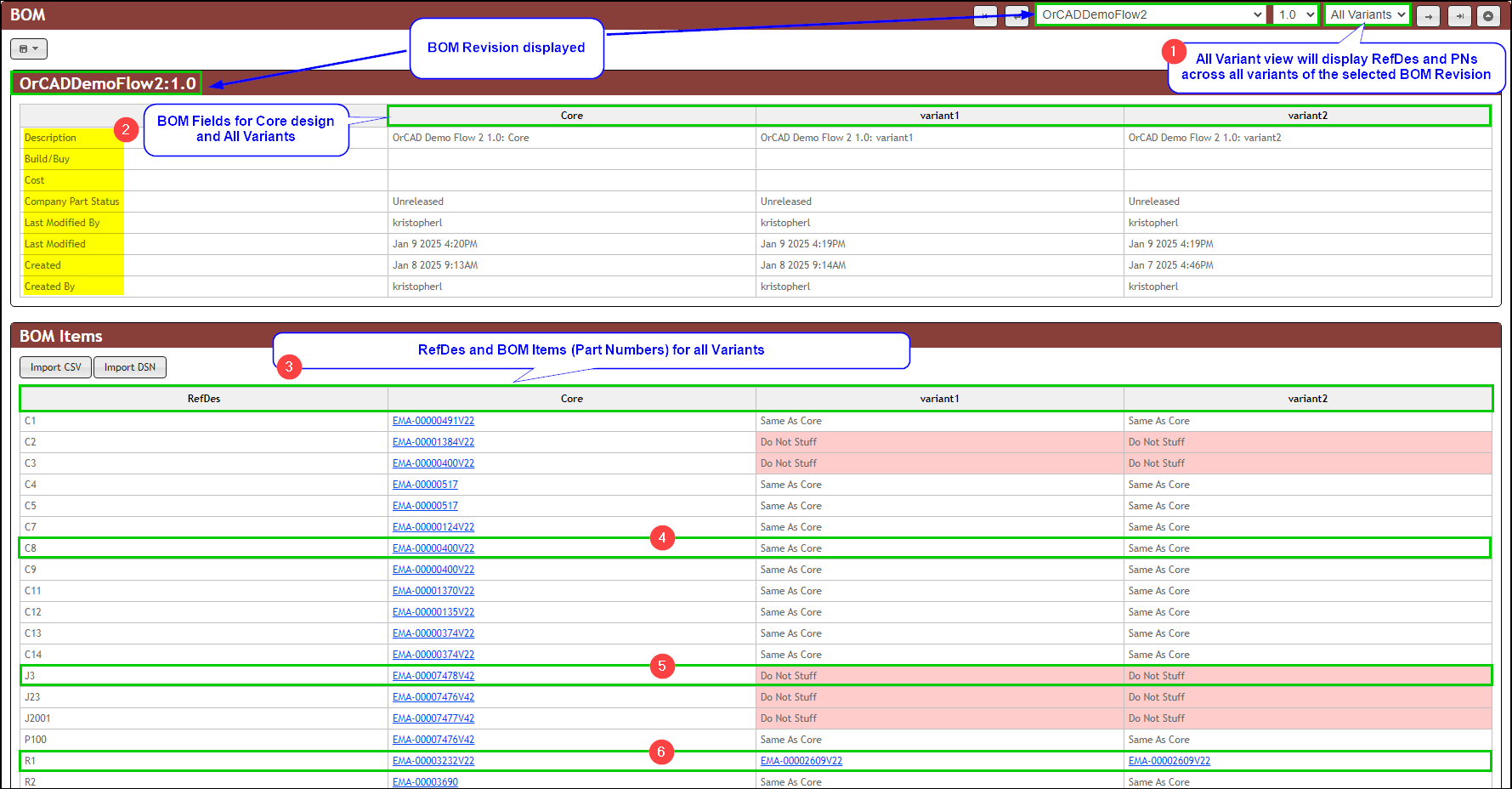
All Variants Selected