Navigate to the BOMs > View/Import page and select the desired BOM-Revision-Variant. Parts can be imported from the BOM Items section of the selected BOM. You can import parts into BOMs from a .CSV file using the  button or from an open Capture schematic design using the
  button.
Note: A BOM revision and variant must be created, as described in Creating a New BOM, before you begin the import process. When using , the list of parts may be from a Capture CIS BOM or a BOM from another source, as long as it is formatted in a supported .CSV file and all of the parts exist in CIP prior to import.

To import a BOM from a design (DSN) file
1.Open the design in Capture CIS and launch CIP.
2.Select BOMs > View/Import and select the desired BOM Revision from the BOM PN drop-down list. When importing from DSN, any CIS Variants can be imported to the selected CIP BOM Revision, regardless of the variant selected (within the BOM Revision) in CIP.
3.Click the button, located in the BOM Items section of your screen.
4.Select the design from the Design File drop-down list and select the desired CIS Variants to import, then click the Import BOM button. The variants in the CIP BOM Revision update with the parts from the design.
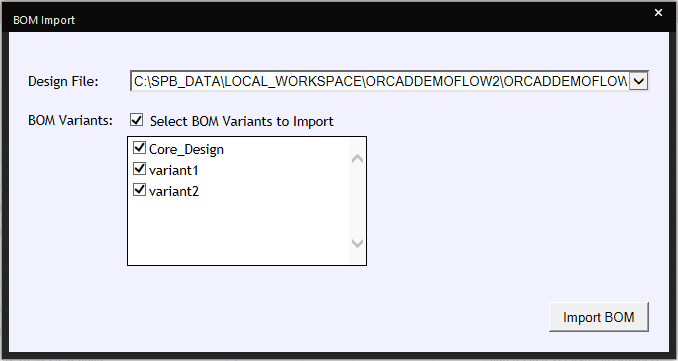
Select DSN and BOM Variants for Import
Note: If CIS Variants being imported do not exist in the selected CIP BOM Revision, they will be unchecked (disabled for import) and marked with an asterisk as shown. You can continue with the import of selected variants and import the missing ones later, or cancel the operation by clicking the X and create the missing variants in CIP before importing.
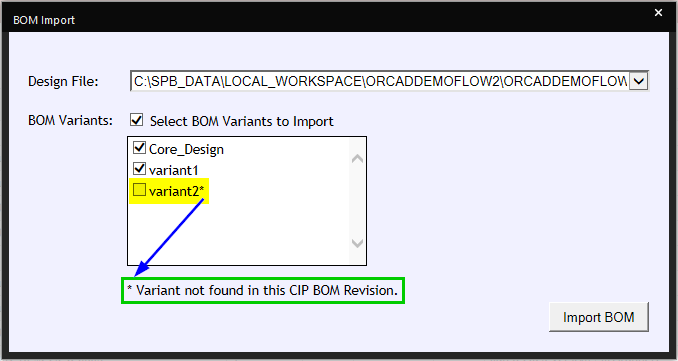
CIS Variant is Missing in CIP and Unchecked/Disabled for Import
5.A confirmation message displays to let you know the import was successful. Click OK to close the window.
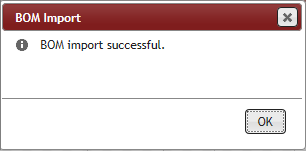
Import Success
Note: When importing designs with variants, your design file must be opened within Capture CIS. All variants within the design file must match the variant names in CIP when using to automatically import parts for selected core design and variants.
6.After import, you can view the BOM as usual, using single variant or All Variants.
To import a single BOM (BOM-Rev-Variant) from a CSV file
1.Select BOMs > View/Import and select the desired BOM Revision from the BOM PN drop list, then select the Core (blank) or Specific Variant from the variant list.
2.Click the button, located in the BOM Items section of your screen.
3.Click the  button. Navigate to the .CSV file that contains your part list. Select the .CSV file, click Open, then click the
  button.
Note: The selected BOM must be formatted as a .CSV file. Additionally, all part numbers in the BOM must exist in CIP prior to import, unless they match the Do Not Stuff text configured in BOM Format.
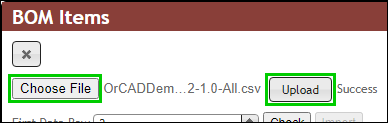
Browse to Select .CSV File
After the BOM uploads, a list of parts included in your BOM displays in the BOM Items area. Notice the blank fields that display above each column header.
4.Click the drop arrow to map the CSV file columns to the CIP PART_NUMBER and RefDes columns. If the BOM part list you are importing contains a child BOM (or sub-assembly), you also need to map the Revision and Variant columns. Otherwise, only the RefDes and PART_NUMBER need to be mapped. Optionally, map any other BOM column fields you want to import.
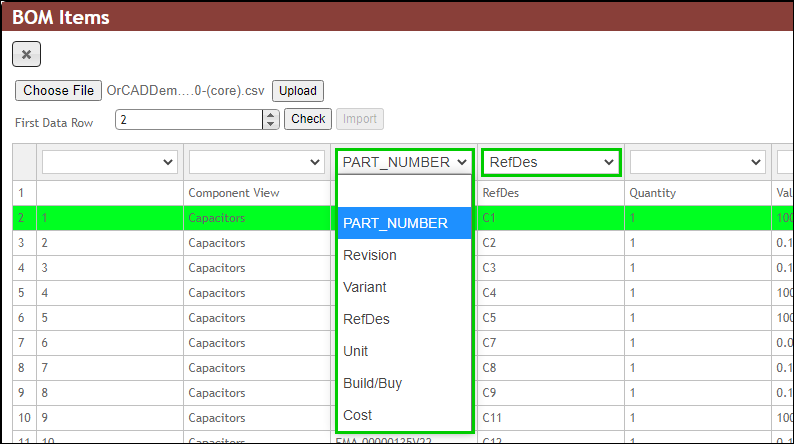
Map CSV BOM Columns to CIP and Select First Row of Data Part Table
5.Select the first row of the data table and click the Check button to validate table rows/columns are mapped correctly. This validation check ensures part numbers in the BOM list are also in CIP.

Check BOM Part Mapping
Note: All part numbers in the BOM must exist in CIP prior to import, unless they match the Do Not Stuff text configured in BOM Format. If parts use the configured Do Not Stuff text, CIP will treat them as such.
6.Once the validation succeeds, click the Import button. A confirmation message displays to let you know the import was successful.
Import Success
7.After import, you can view the BOM as usual, using single variant or All Variants.
To import multiple BOM Variants into a BOM Revision (Core, Variants) from a CSV file
1.Select BOMs > View/Import and select the desired BOM Revision from the BOM PN drop list, then select the All Variants option from the variant list.
2.Click the button, located in the BOM Items section of your screen.
3.Click the button. Navigate to the .CSV file that contains your part list. Select the .CSV file, click Open, then click the button.
Note: The selected BOM must be formatted as a .CSV file. Additionally, all part numbers in the BOM must be in CIP prior to import, unless they match the Do Not Stuff text configured in BOM Format.
Browse to Select .CSV File
After the BOM uploads, a list of parts included in your BOM displays in the BOM Items area. Notice the blank fields that display above each column header.
4.Click the drop arrow to map the CSV file columns to the CIP PART_NUMBER and RefDes columns for each of the desired variants (Core, Variants) to be updated. If the BOM part lists you are importing contain a child BOM (e.g. sub-assembly), you also need to map the Revision and Variant columns for each BOM Variant. Otherwise, only the RefDes and each variant's PART_NUMBER need to be mapped.
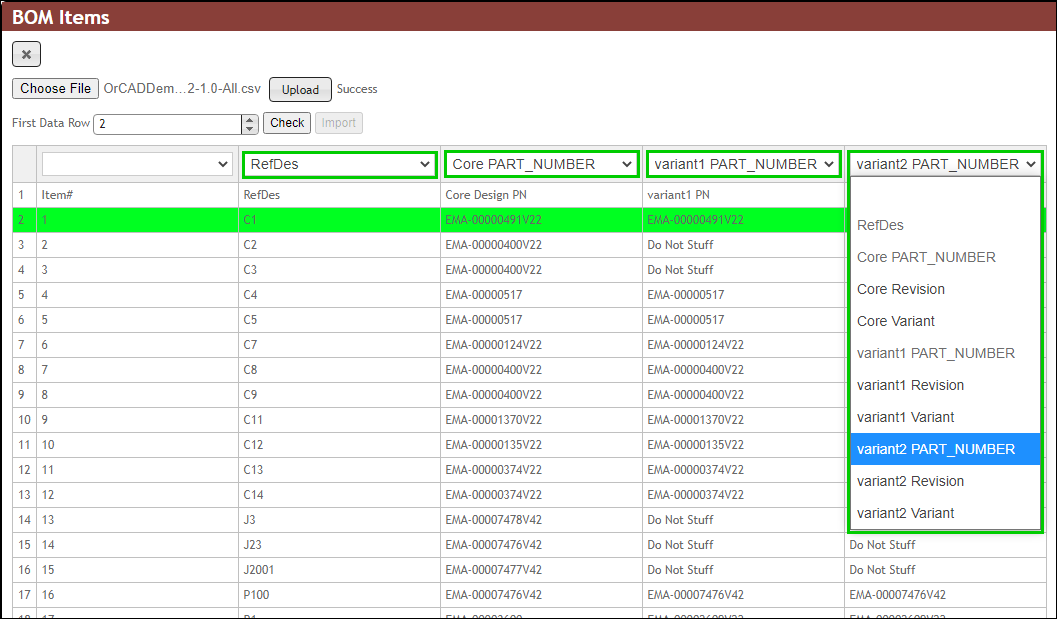
Map CSV BOM Columns to CIP and Select First Row of Data Part Table
5.Select the first row of the data table and click the Check button to validate table rows/columns are mapped correctly. This validation check ensures part numbers in the BOM list are also in CIP.
Check BOM Part Mapping
Note: All part numbers in the BOM must exist in CIP prior to import, unless they match the Do Not Stuff text configured in BOM Format. If parts use the configured Do Not Stuff text, CIP will treat them as such.
6.After the validation succeeds, click the Import button. A confirmation message displays to let you know the import was successful.
Import Success
7.After import, you can view the BOM as usual, using single variant or All Variants.