The bulk rename process begins with the selection of the Admin > Bulk Operations > Bulk Rename menu.
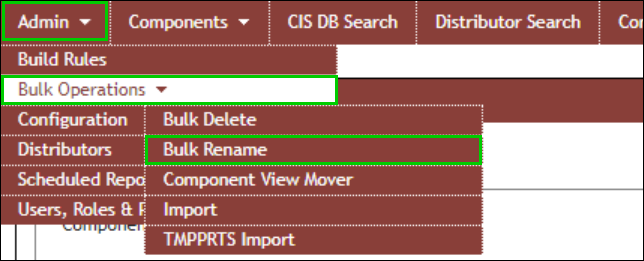
Admin > Bulk Operations > Bulk Rename
A warning shows immediately, informing you that renaming is permanent and advising you to back up your database before proceeding.

Bulk Rename Warning Message
To configure part data from CSV to CIP
1.Select the Admin > Bulk Operations > Bulk Rename menu.
2.Click the Configuration button.
| Note: If for some reason the bulk rename was interrupted by unforeseen activity (e.g. database restart) or the rename stalls at the same state, the Configuration button will be disabled and will be enabled after 30 minutes. |
3.Click the Choose File or Browse button (depending on your browser) to select the .CSV file you want to upload.
Note: The CSV file must be a valid CSV file without duplicate column headers. Extra columns of data without headings are considered duplicate headings.
4.Verify that the delimiter selected by default matches the delimiter of your file. Enter another delimiter if needed.
5.Click the Upload button. If successful, the Key Field Configuration screen will appear when the upload process is complete.
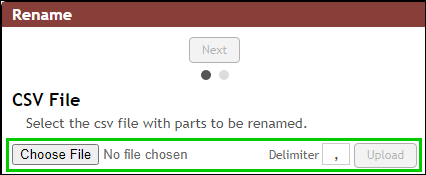
Choose File, Delimiter, and Upload
6.The Key Field Configuration screen shows the CIP fields and the .CSV fields of your uploaded file side-by-side to help you map the key fields. Select desired Import Fields from your uploaded .CSV file to map them to the CIP fields.
•Component VIew – This is the Component VIew of the current company part number (component PN) being renamed. This field is a required field that must be mapped.
•PART_NUMBER – This is the company part number (component PN) field. This field is a required field that must be mapped.
•New PART_NUMBER – This is the company part number (component PN) field. This field is a required field that must be mapped.
7.Click the Save button to complete configuration and take you back to the Rename tab's summary screen. You are now ready to Rename Parts.
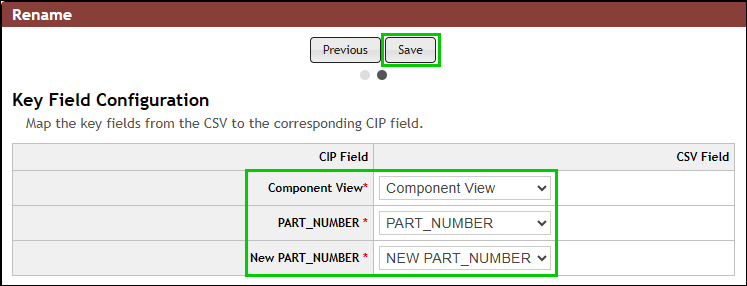
Rename mapped PART_NUMBER to NEW PART_NUMBER, and validate with Component View
Import File Format
Ensure your .CSV file satisfies the following formatting conventions:
•The import file must be in CSV format. Excel can be used to generate CSV files. After creating your file, you need to save the file as a .CSV file.
•The first line of the file must contain the field names for each column. If a title is in the first few lines of the file, you will need to remove those lines first. The field name for each column must be unique.
•There must be a column for the Component View, current Company PN (PART_NUMBER), and desired new Company PN. Parts without a part number or with one that doesn't exist in CIP will not be renamed and will be considered Not Found.
•The CSV file must not have any duplicate column headers. This includes duplicate blank columns with blank headings.
•All rows within the CSV file should have the same number of columns.
•Characters in the CSV file must be UTF-8 encoded to avoiding encoding warnings.
Warning about using Excel
Older versions of Excel, when used to create or edit .CSV, have caused problems with creating files that are not well-formed. When this occurs, you will either need to manually fix the file or use a later version of Excel.