The Bulk Rename feature allows a list of parts to be renamed from one company PN to another, using a Comma Separated Value (CSV) file. The CSV file requires a column identifying the current Company PN (PART_NUMBER), Component View to which it belongs, and the desired New Company PN.
It is recommended that you back up your database prior to performing the Bulk Rename, or at least confirm that regular backups are being created.
Note: Backing up your database may require assistance from your IT or your DBA (database administrator).
Bulk Rename can be accessed from Admin > Bulk Operations > Bulk Rename.
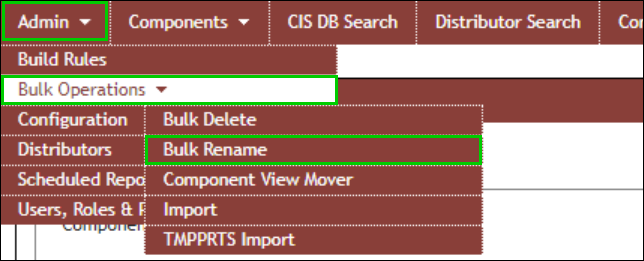
Admin > Bulk Operations > Bulk Rename
A warning shows immediately, informing you that renaming is permanent and advising you to back up your database before proceeding.

Bulk Rename Warning Message
Configure for Rename explains how to:
•Select and upload your CSV file
•Map fields from CSV to CIP
Rename Parts explains how to:
▪Rename parts in your CIP/CIS database
When using Bulk Rename, it's important to know how to properly specify what you are trying to rename.
•Component View – This is the Component View of the current company part number (component PN) being renamed. This field is a required field that must be mapped.
•PART_NUMBER – This is the company part number (component PN) field. This field is a required field that must be mapped.
•New PART_NUMBER – This is the company part number (component PN) field. This field is a required field that must be mapped.