After you configure your file for rename, you can proceed with the bulk rename. As part of the rename action, a pre-check validation will confirm that the existing parts to be renamed exist in CIP and belong to the specified component view. This helps ensure the correct parts are renamed.
The summary section below the Configuration and Rename buttons shows details like Missing Data, Not Found, ExistingPN, Duplicate Source, Duplicate Target, etc. Additional details can be found by reviewing the log files shown in the Logs tab.
1.Click the Rename button to continue. Each time you click the Rename button, the CSV data will be validated before proceeding with the rename.
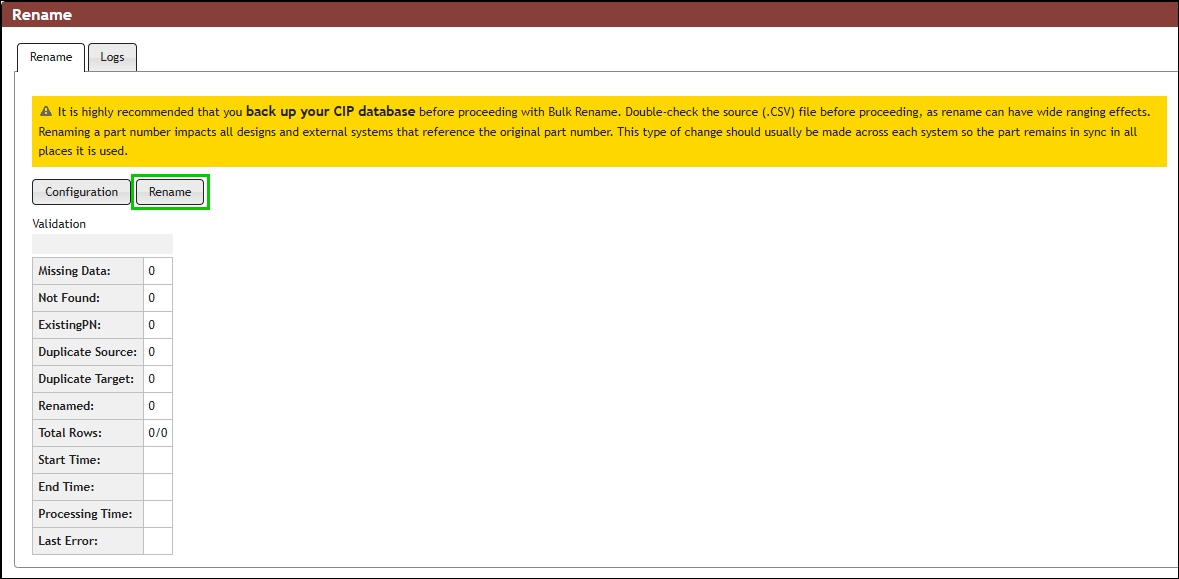
Rename After Configuration
2.A Rename Parts? confirmation window appears. Enter the word RENAME in ALL CAPS. The Rename button will be disabled until you do so. Click Rename.
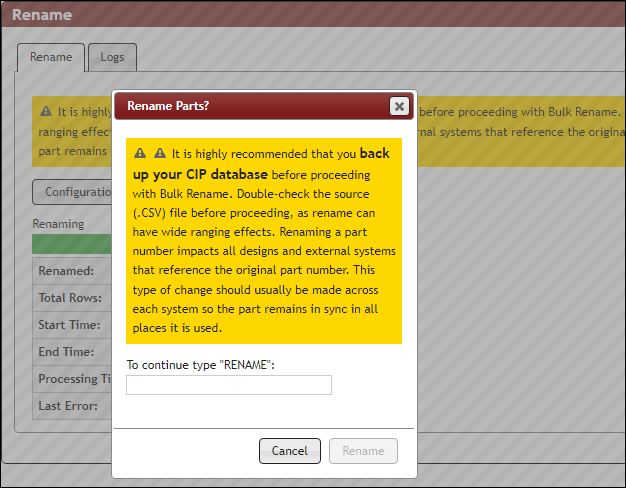
Rename Parts Confirmation Pop-up Window
3.The summary will be updated until the rename is completed. The validation pre-check will confirm that the existing parts to be renamed exist in CIP and belong to the specified component view. Once validation is completed successfully, the rename will begin.
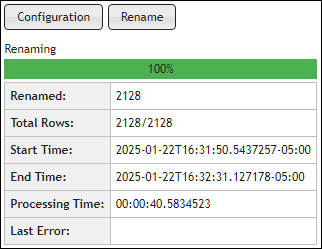
Rename Summary
4.Click the Logs tab to view the list of completed logs. Validation log files are only created when the validation pre-check fails and they will have the ValidationError text in the file name. Rename logs will have the BulkRename text. Click an individual log file name to view it. Click the  button to save the file. Notice that logs with the BulkRename text in the file name do not have a validation message at the top and bottom of the log file, as shown below.
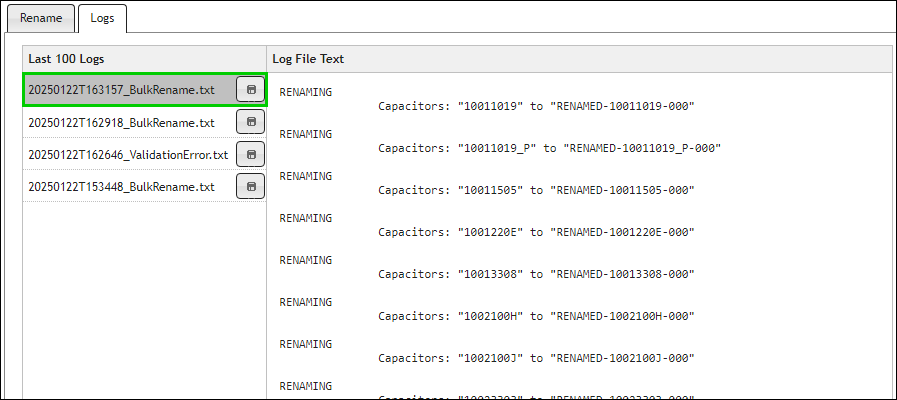
Log File Selected
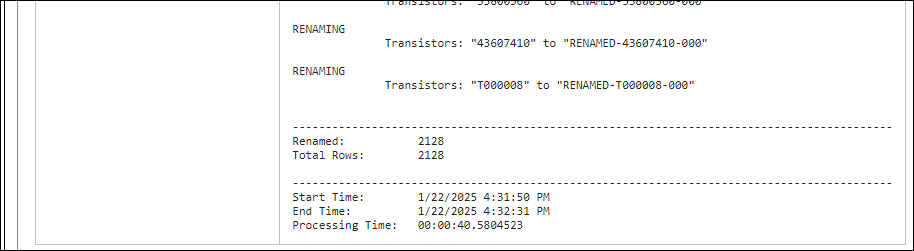
Summary at the End of Log
Here's an example of what you can specify. The column header names in your CSV file are up to you, since you'll be mapping those when you Configure for Rename.
Component View |
PART_NUMBER |
NEW PART_NUMBER |
Expected Behavior |
Capacitors |
PNCAP001 |
CAP-001-00 |
Validate that PNCAP001 exists in CIP and belongs to the Capacitors view, then Rename PNCAP001 to CAP-001-00. |
Resistors |
PNRES002 |
RES-002-00 |
Validate that PNRES002 exists in CIP and belongs to the Capacitors view, then Rename PNRES002 to RES-002-00. |
Import File Format
Ensure your .CSV file satisfies the following formatting conventions:
•The import file must be in CSV format. Excel can be used to generate CSV files. After creating your file, you need to save the file as a .CSV file.
•The first line of the file must contain the field names for each column. If a title is in the first few lines of the file, you will need to remove those lines first. The field name for each column must be unique.
•There must be columns for the Component View, Component PN (PART_NUMBER), and New Component PN (PART_NUMBER). If any single part does not exist in your CIP or exists in a different component view than specified, validation will fail and rename will not begin. Review the log, fix the issues, and repeat the process to try again.
•The CSV file must not have any duplicate column headers. This includes duplicate blank columns with blank headings.
•All rows within the CSV file should have the same number of columns.
•Characters in the CSV file must be UTF-8 encoded to avoiding encoding warnings.
Warning about using Excel
Older versions of Excel, when used to create or edit .CSV has caused problems with creating files that are not well-formed. When this occurs, you will either need to manually fix the file or use a later version of Excel.
Log files
Log files are accessible from the Admin > Bulk Operations > Bulk Rename > Log tab. Two types of log files may be generated, (ValidationError and BulkRename). The file name of each log file consists of the date, separated by a "T" and the time, followed by "ValidationError" or "BulkRename." For example, the file name of the log is based on one of the two naming conventions:
YYYYMMDDTHHMMSS_ValidationError.txt – generated each time you run Rename and the validation pre-check encounters errors.
YYYYMMDDTHHMMSS_BulkRename.txt – generated each time you run Rename and validation pre-check succeeds and rename begins.
YYYY = year
MM = month
DD = day
T - separates the date and time of log generation.
HH = hour
MM = minutes
SS = seconds
The log files record information for validation errors (ValidationError logs) or rename actions and errors (BulkRename logs).