To configure the Company Part Number
1.With the CIP > Settings... menu open, enter/update the Company Part Number with the part number that your design files use. This will be used with the right-click (RMB) menu More... > CIP: Open Part from a selected part on the design. This will be set to PART_NUMBER by default, to match the default CIP PART_NUMBER field's Display Name.
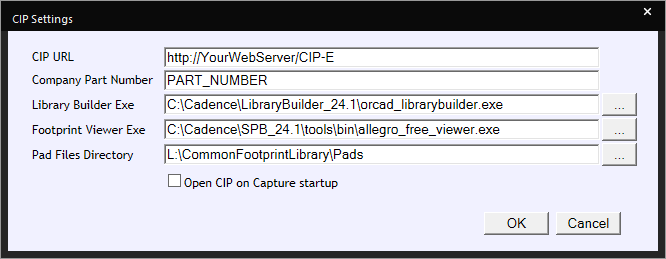
CIP > Settings

a.If your CIP Transfer Fields option is set to OrCAD CIS DBC AND you alias the PART_NUMBER in your CIS .DBC file, you'll need to enter the same alias here in Company Part Number.

Aliased PART_NUMBER in CIS
b.If your CIP Transfer Fields option is set to either CIP option (OrCAD Using CIP or CIP and System Capture) AND you alias the CIP PART_NUMBER, you'll need to enter the same alias here in Company Part Number.

Aliased PART_NUMBER in CIP
2.Click OK to save the settings.
3.You can open CIP and view a part from an open schematic design page. Open a part in CIP from the schematic active page by right-clicking (RMB) inside an open schematic design page and selecting More... > CIP: Open Part. This will open a CIP tab (named CIP: <PART_NUMBER>) with the part number displayed. The tab that opens will behave like a regular CIP page so you can perform other standard CIP actions inside it, or you may close it.
| Note: This feature requires OrCAD Capture and the CIP Client plugin. It is not available when using the System Capture plugin. |
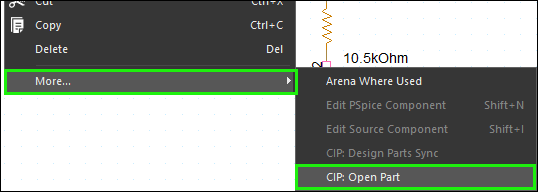
Open Part in CIP from RMB on an Open Schematic Page
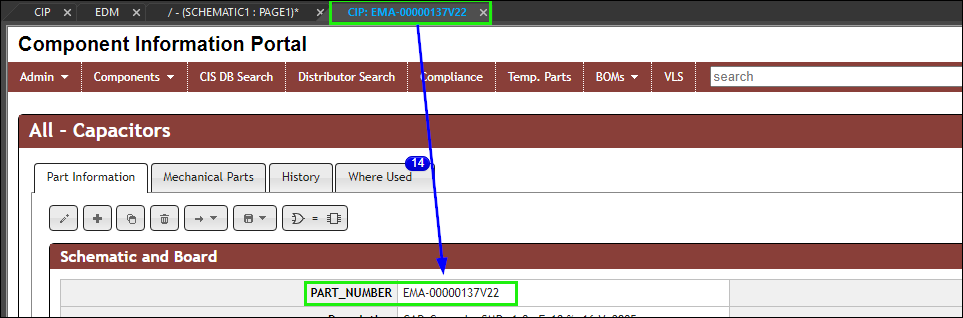
CIP tab shows the part in CIP