Uploading a parts list is a quick and simple process. To upload a parts list, you must first create a CIS BOM from Capture CIS (or other parts list) and save it as a (.CSV) file.
To Upload a BOM (Parts List)
1.Open CIP and select the BOMs > Export menu.
2.Select the Upload BOM radio button if it is not already selected. Click the Choose File button and navigate to the BOM (parts list). Select the file and click the Open button.
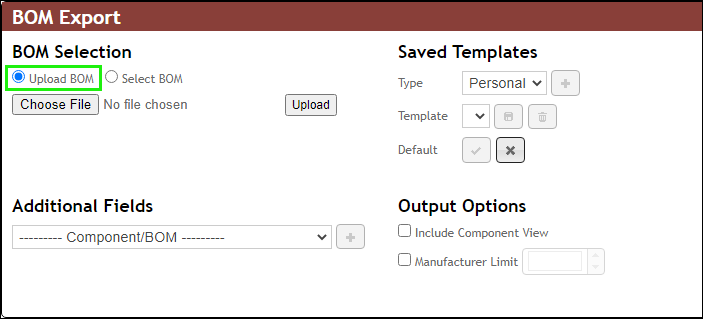
BOM Selection - Options when using Upload BOM
3.Notice the path and filename of the BOM you selected is now visible in the input field. Click the Upload button.
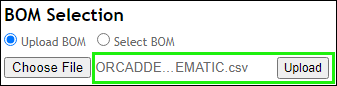
Uploading a (.CSV) Parts List
The part list opens.
4.Enter the row numbers for the first BOM child item (First Data Row) and Header Row as shown in the screen image below.
When the row numbers of the First Data Row and Header Row are entered, the header row becomes highlighted in a light shade of blue and the first row of data becomes highlighted in green (shown below).
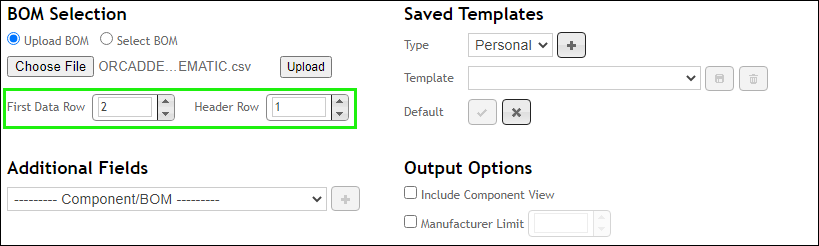
Select First Data Row and Header Row
5.Notice the blank fields above each column, (see screen image below). Click the drop arrow for your Part Number column and select PART_NUMBER from the list to map CIS and CIP parts. If your parts list contains a child BOM (or sub-assembly) you may also map the Revision and Variant columns to associate the child BOM.
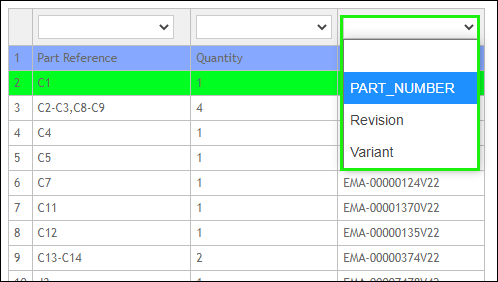
Mapping the BOM PART_NUMBER Column
6.Continue with configuration and export of the Uploaded BOM.
To Configure and Export an Uploaded BOM
After you upload a BOM, continue with the export by adding additional fields and selecting output options.
BOM Selection - Options when using Upload BOM
1.Verify the Header and Part Number fields are set up properly.
2.If using a Saved Template, the default Template will load automatically. Select a Template Type (Personal or Global), then select the desired Template to load its settings. If not using a template, skip this step.
3.Select Additional Fields from CIP using the drop-down list to add fields to the BOM you are exporting. After you select a field, click the Add  button to add the field name to the list of additional fields located immediately below the selection field. Drag-and-drop a field name to move it up and down the list. Click the red
  on a field's row to remove it from the included output fields.
4.Select the desired Output Options. Some of these are only available with Select BOM is chosen as the BOM Selection.
a.Include Component View - Add a column for the CIP Component View name (e.g. Capacitors, Connectors, etc.) to each part of the BOM.
b.Manufacturer Limit - If you include Manufacturer, Manufacturer PN, or any of the related Manufacturer/Distributor fields, you may wish to specify the number of Manufacturer Parts to include with each part on the BOMs. When unchecked, All Manufacturer Parts will be used. - e.g. Limit Manufacturer (PN) to 1 if you only want to include the first Manufacturer PN (left-most MFR/MPN tab when viewing a part in CIP).
Note: If you include any Distributor data, it will display such data for All Distributor PNs belonging to each Manufacturer PN.
5.When you are finished selecting Additional Fields and Output Options, click the Update  button to display the BOM below.
6.Repeat Steps 3-5 until the BOM is ready for export.
7.Click the Export  button and choose whether you want the file format to be CSV or Excel. A confirmation message appears when your export is successfully completed.
•If you choose the CSV format you are prompted to Save or Open the new (.CSV) file.
•If you choose Open, the file opens directly in your browser window.
•If you choose Save you are prompted to select a location to save the (.CSV) file.
Note: Export functionality is not available when using the System Capture plugin.
Refer to the example below to see how a BOM Export can look before exporting it. Notice how the Description, Manufacturer, and Manufacturer PN fields are now visible in the parts list. The new parts list also shows multiple Manufacturer PNs that are associated with single company part numbers. There are nearly an unlimited combination of BOM fields and output options so note that this is only an example of a specific scenario.
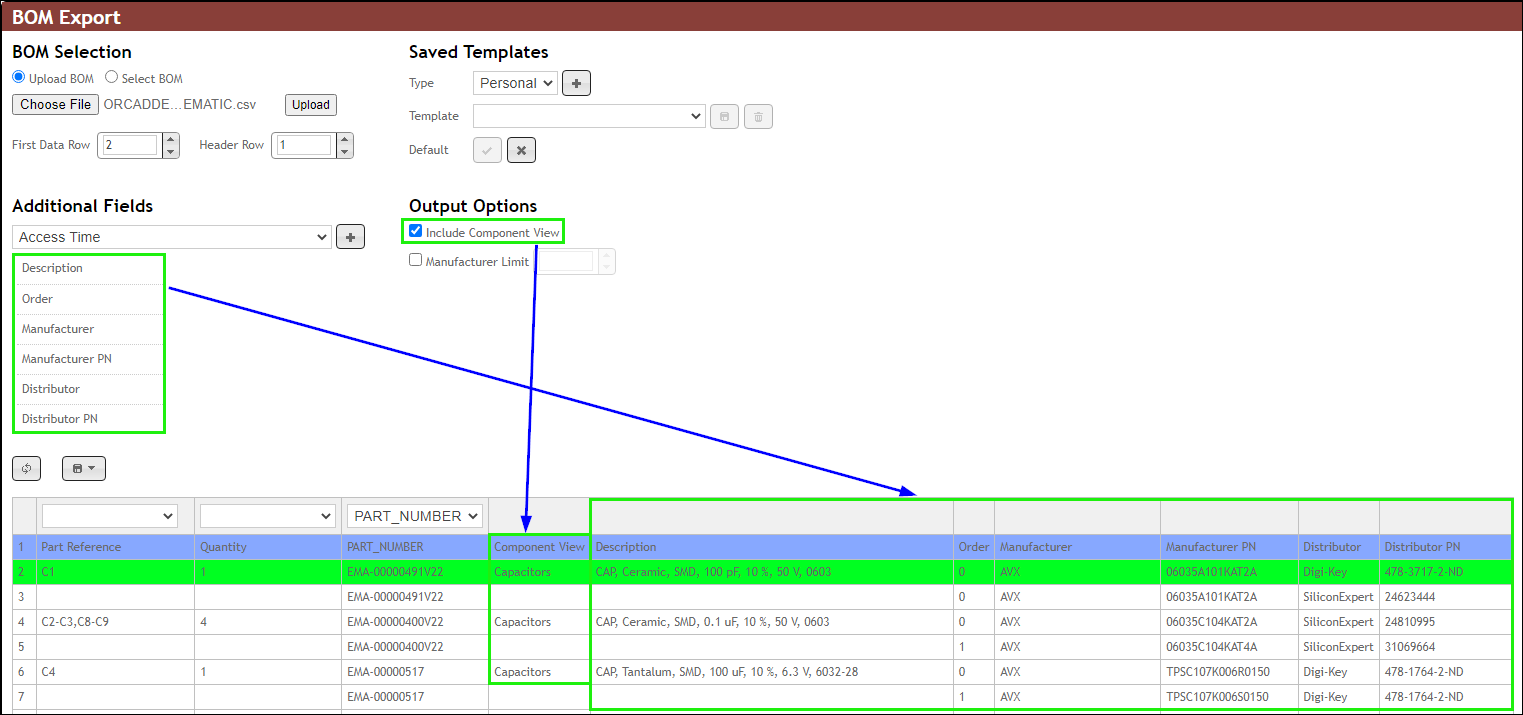
Configured Additional Fields and Output Options